

How to Quickly Choose Between Windows Home and Pro

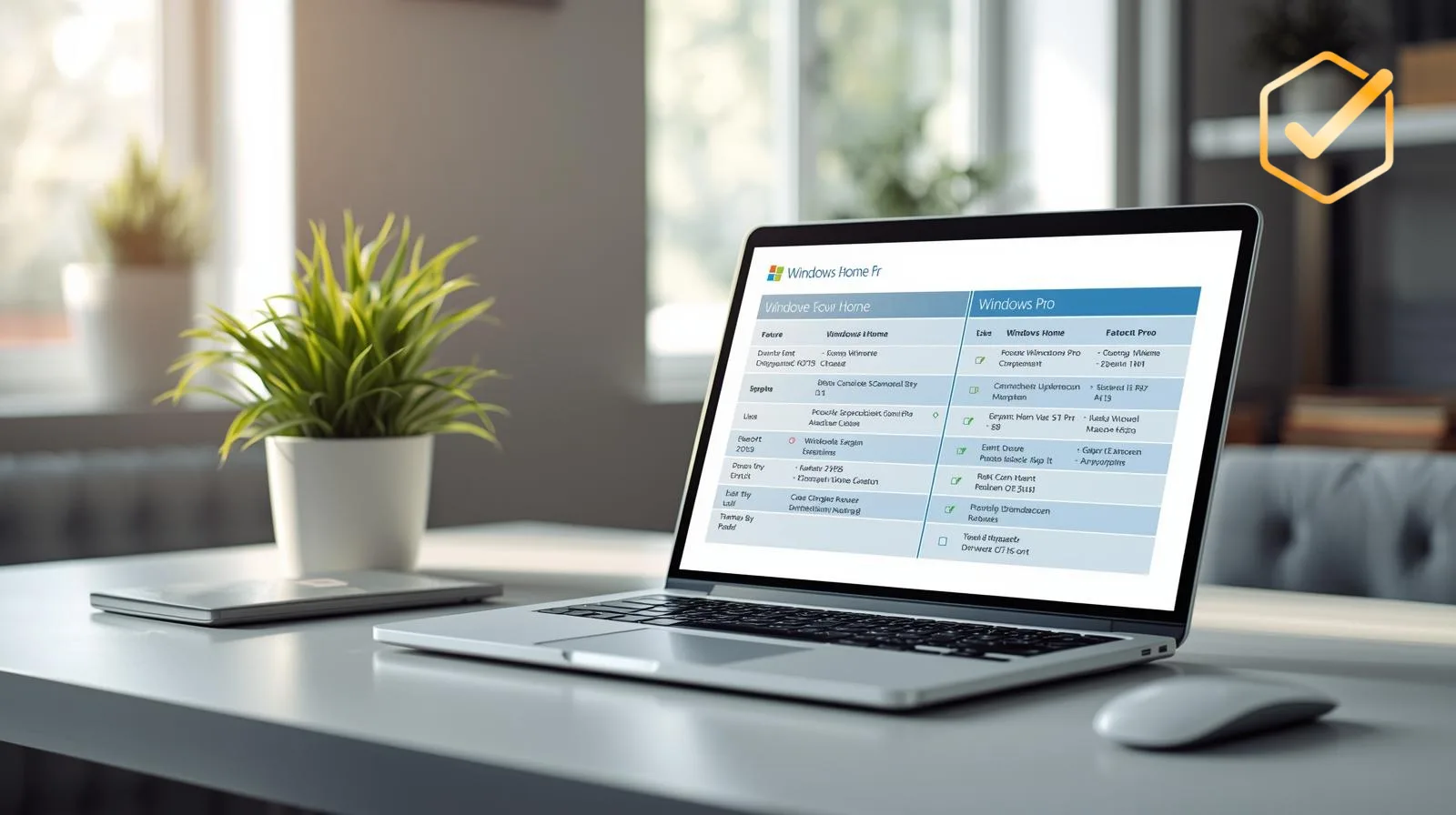
Choosing between Windows Home and Windows Pro should be simple, but it often isn’t. People see two options at checkout and freeze: Which one is worth my money?
Here’s the straight answer:
Windows Home is perfect for most everyday users, while Windows Pro adds advanced security, networking, and business features that professionals need.
In the next few minutes, you’ll understand exactly which version fits your situation — without confusion or tech jargon.
The Real Problem Buyers Face
When someone shops for Windows online, they often see:
- Windows Home priced lower
- Windows Pro priced higher
- Little explanation of what the difference really means
Most sites simply list bullet points, but that doesn’t solve the real question:
“Will this edition meet my needs or leave me paying for features I never use?”
Worse, some buyers pick the cheaper option only to regret it later when:
- They need advanced security
- They want to join a business network
- They want group administration tools
- They try to enable BitLocker
And suddenly they think they made the wrong choice.
This blog fixes that confusion with straightforward, practical advice.
What Actually Matters When Choosing Between Windows Home and Pro
Instead of just comparing features, let’s match versions to real needs.
Ask yourself these questions:
- Do you need advanced security tools like encryption and remote management?
- Are you running a business or connecting to a company network?
- Will you use features like BitLocker or Hyper-V virtualization?
- Is price your only priority?
The answers help you narrow down what matters most.
Clear Feature Comparison: Home vs Pro
Windows Home
Home is designed for everyday users, students, families, and anyone who needs core Windows features without extra business tools.
Key capabilities include:
- Familiar Start Menu and Taskbar
- Microsoft Store access
- Windows Update support
- Basic device security
- Cortana voice assistant
Windows Home gives you everything you need for browsing, multimedia, productivity, and casual gaming.
Windows Pro
Windows Pro brings all Home features plus advanced tools for power users and professionals.
Pro exclusive features:
- BitLocker device encryption
- Group Policy Management
- Remote Desktop
- Assigned Access
- Hyper-V virtualization
- Business domain join
These features are essential for IT admins, business networks, developers, and advanced users. If you ever plan to run teams, secure devices centrally, or use virtualization tools, Pro is often worth the upgrade.
Licensing Types: OEM vs Retail
Once you’ve chosen Home or Pro, you also need to choose a license type.
OEM License
- Lower cost
- Locked to one device
- Not transferable to new PC
Best if you are activating one machine and don’t plan to change hardware soon.
Retail License
- Slightly higher cost
- Transferable to a new PC
- Linked to your Microsoft account
Best choice if you upgrade computers often or want flexibility.
Choosing the correct license type prevents future activation headaches.
Practical Scenarios: Which Version Is Right for You
You Are a Home User or Student
You use email, web browsing, streaming, and Office apps.
Windows Home is the smart and cost-effective choice.
You Are a Small Business Owner
You manage multiple PCs, secure sensitive data, or join business networks.
Windows Pro’s extra tools make administration easier and safer.
You Are a Freelancer or Developer
You use virtualization, need remote access, or want advanced security.
Windows Pro enhances productivity and control.
You Work in IT or Enterprise Environment
Domain join, group policies, and encryption are essential.
Pro is the version designed for you.
Pricing & Value Breakdown
Windows Home costs less upfront, but you get only essential features.
Windows Pro costs more but combines:
- Enhanced security
- Advanced networking tools
- Better device control
In the long run, Pro often saves time and reduces troubleshooting for business and power users.
If you choose an OEM activation key, you save money at purchase. If you choose Retail, you gain flexibility.
For most individual users, Home is more than sufficient. For professionals and business environments, Pro unlocks the tools that matter.
How to Buy Genuine Windows With Confidence
Step 1: Decide Home or Pro based on your needs.
Step 2: Choose OEM or Retail depending on future hardware plans.
Step 3: Purchase from a trusted digital store.
Step 4: Activate with a genuine key from email delivery.
At LeenGoldKeys, Windows license keys are delivered instantly by email with clear activation instructions.
Explore Windows keys here:
Buying from trusted sources ensures:
- Permanent activation
- Official Microsoft updates
- No recurring payments
- No activation problems
Common Buyer Mistakes to Avoid
Many users make these mistakes:
Buying a subscription when a lifetime key would suffice.
Choosing Home but needing Pro features later.
Using unofficial activation tools that cause activation errors.
Not matching the key type (OEM/Retail) with their upgrade plans.
Avoiding these mistakes saves time, money, and frustration.
Frequently Asked Questions
What is the main difference between Windows Home and Pro?
Windows Pro has advanced security, business network tools, and management features that Home does not.
Can I upgrade from Home to Pro later?
Yes, you can upgrade from Home to Pro without reinstalling Windows.
Is Windows Pro worth it for gamers?
If you want basic gaming only, Home is fine. Pro is useful if you run Virtualization or advanced security.
Can I transfer a Windows key to a new PC?
Only Retail licenses are transferable. OEM licenses stay with one device.
Does Pro have better security?
Yes, Pro includes BitLocker and advanced access controls not found in Home.
Will both editions get updates?
Yes, both get official Microsoft updates.
Which version should students choose?
Most students are fine with Windows Home.
Do businesses always need Pro?
Most do, especially if joining a domain or managing multiple PCs.